
Your first hour with Tojuri.
Six steps, in the order Tojuri shows them. Most of the hour is Amazon; the first backup then carries on by itself.
Have these ready.
Four things, and about an hour. Amazon bills your storage to you directly, never through Tojuri.
- Your MacA Mac with Apple silicon, running macOS 14 Sonoma or later, plugged in.
- Your invitationThe email it went to is your Tojuri sign-in. The download link is in it.
- For AmazonA credit or debit card and your phone. Amazon checks the card and may hold a small amount for a day.
- For your Recovery KitA printer, or a safe place for a PDF away from this Mac. About five minutes.
Step by step.
-
Install Tojuri.
Open the file from your invitation email and drag Tojuri into Applications. Open it from there. If Tojuri offers to move itself, choose
Move to Applications
.Want to check the file first? The download page shows how.
-
Give it Full Disk Access.
Tojuri needs your permission to read the folders you choose; macOS calls this Full Disk Access. Choose
Open System Settings
, drag the Tojuri tile into the list, then turn its switch on. Tojuri notices by itself.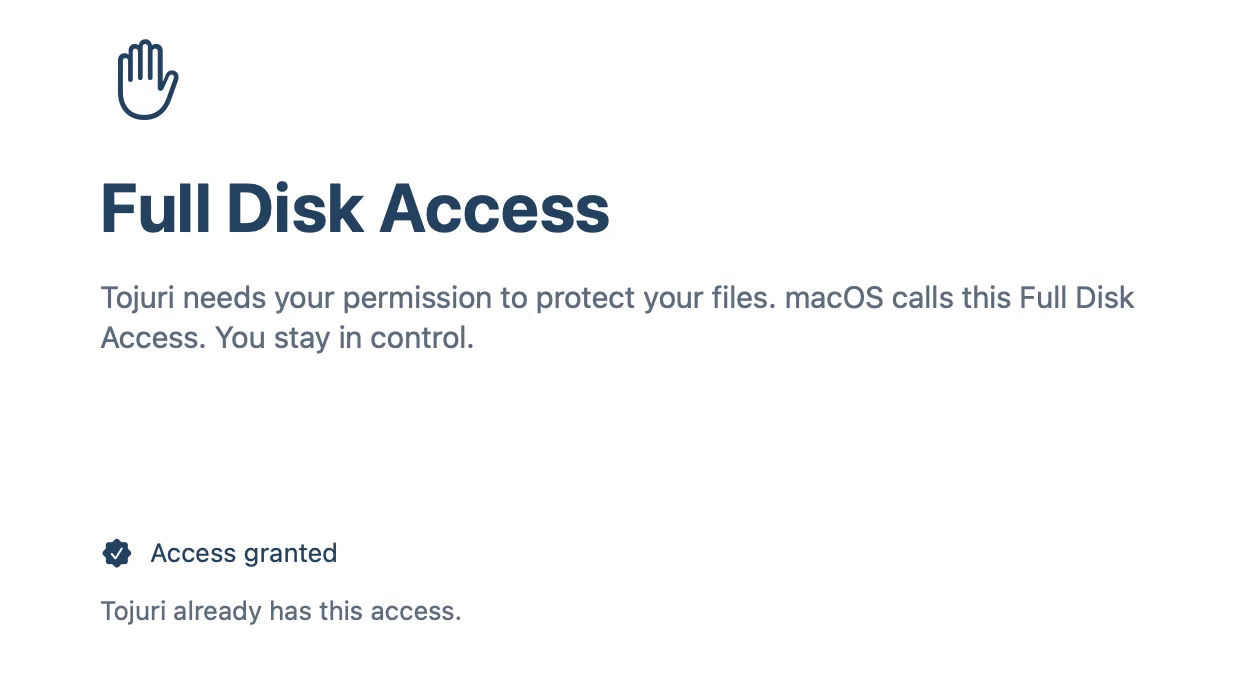
-
Choose what to protect.
Pick your folders, then the external drives you want backed up. Tojuri shows what it will protect and an estimate of what Amazon will charge to store it.
-
Connect your Amazon account.
Tojuri asks whether you already have an Amazon Web Services account. If you are new, choose
No, I'm New to This
and it walks you through making one. Amazon takes about 15 minutes, and you can stop and come back.Choose Amazon's paid plan.When Amazon asks you to pick a plan, choose the paid plan. Amazon closes free-plan accounts after six months and deletes everything in them, including backups. The paid plan has no monthly fee: Amazon bills only for what you use, and any free credit still applies. If you already chose the free plan, upgrade in Amazon's Billing page; Tojuri also reminds you.
Next, sign in to Tojuri with the email your invitation went to. A code arrives from sign-in@auth.tojuri.com. Enter an email for Amazon's cost alerts, then choose
Connect Amazon Storage
.Amazon opens a page that Tojuri has filled in for you. First check that it shows the same code as Tojuri. If it does, tick the box at the bottom that acknowledges what Amazon will create, and choose
Create stack
. Amazon usually takes 2 to 3 minutes, and Tojuri notices on its own. Then confirm the Amazon account Tojuri shows is yours.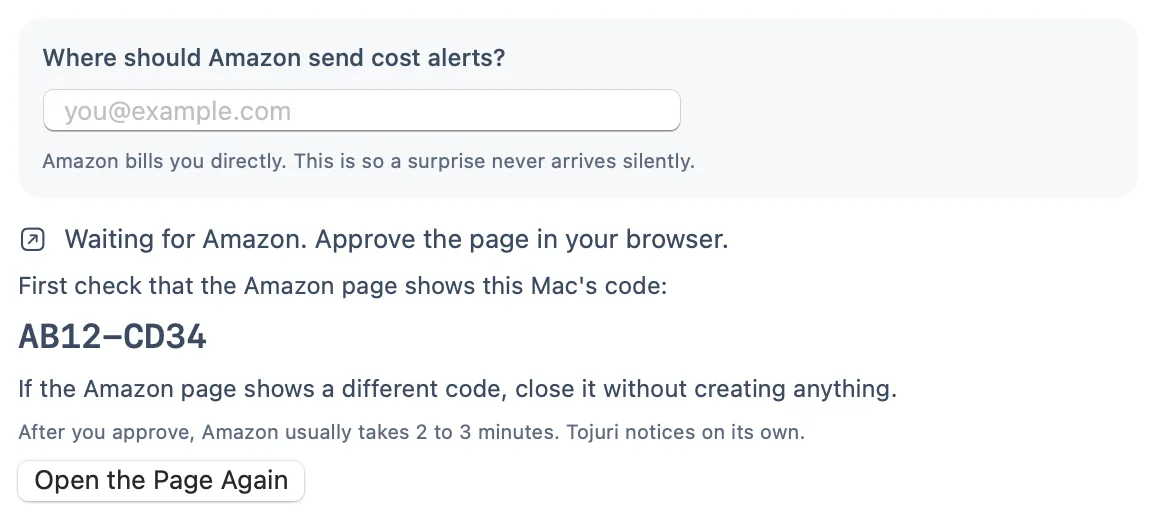
-
Start your first backup.
Choose
Start First Backup
. On home internet it can take hours or days. Tojuri keeps what it uploads, so stopping is always safe, and it carries on whenever Tojuri is running. Leave the Mac plugged in.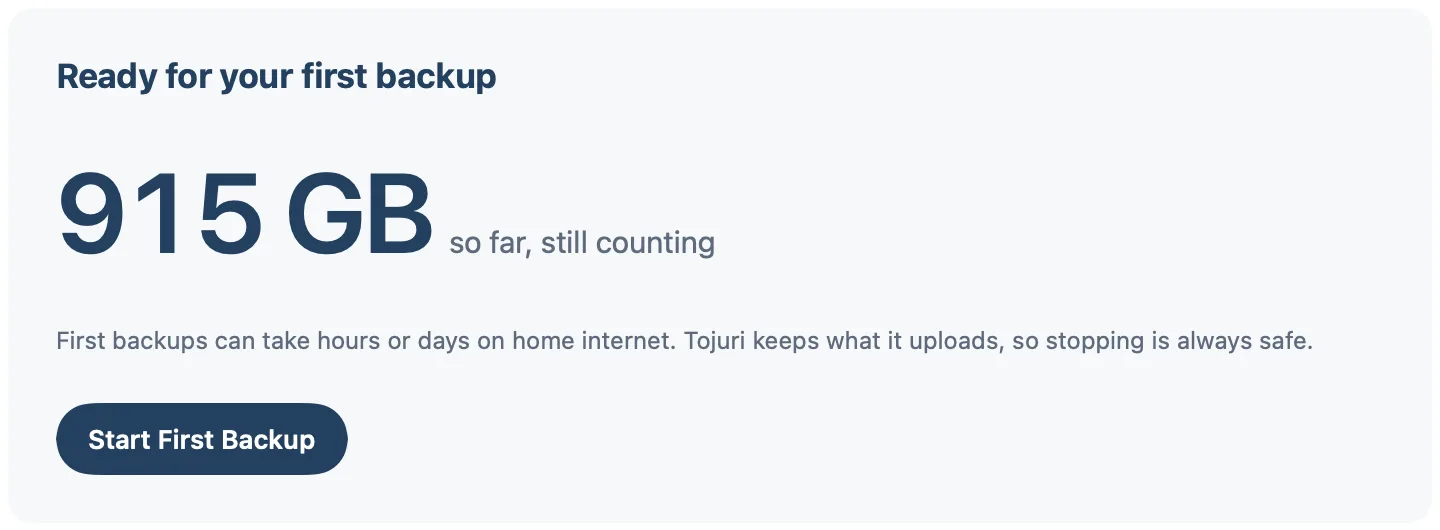
-
Make your Recovery Kit.
When the first backup finishes, choose
Make My Recovery Kit
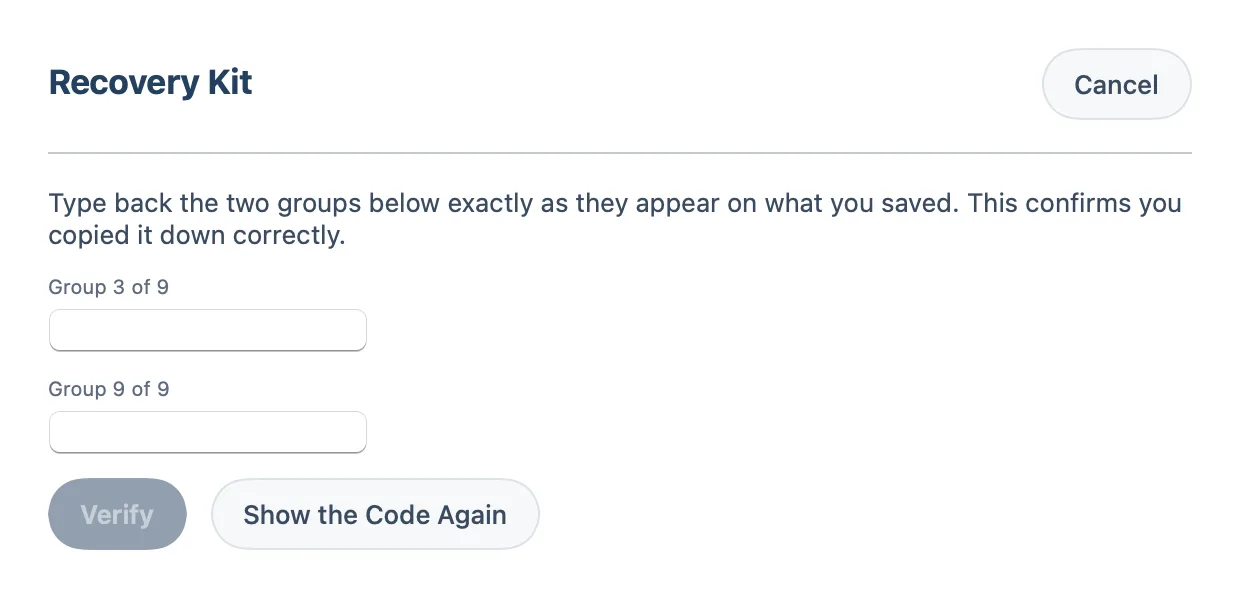
. Print it, or save it as a PDF somewhere safe that is not this Mac. Then type back the two groups Tojuri asks for. Pasting is off there, so it proves you really have it.Your Kit is the only way to open your backup if this Mac is lost. Tojuri cannot see your Recovery Code and cannot replace it.
If you get stuck.
Write to hello@tojuri.com. You reach the people who build Tojuri. Tell us what you saw, not what you think went wrong; a photo of the screen is perfect.
Wait a few minutes and check your spam folder. It comes from sign-in@auth.tojuri.com.
Close it without creating anything, then choose Open the Page Again
in Tojuri.
That is normal at home. It continues whenever Tojuri is running, and nothing uploaded is lost.
In Tojuri, open the Help menu and choose Send Diagnostics, then Email to Tojuri. It sends us a short report about the app.